What This Covers:
How to create an outro for your podcast.
✅ Step-by-Step Instructions
- Go to the Audio Segments from the left navigation bar.
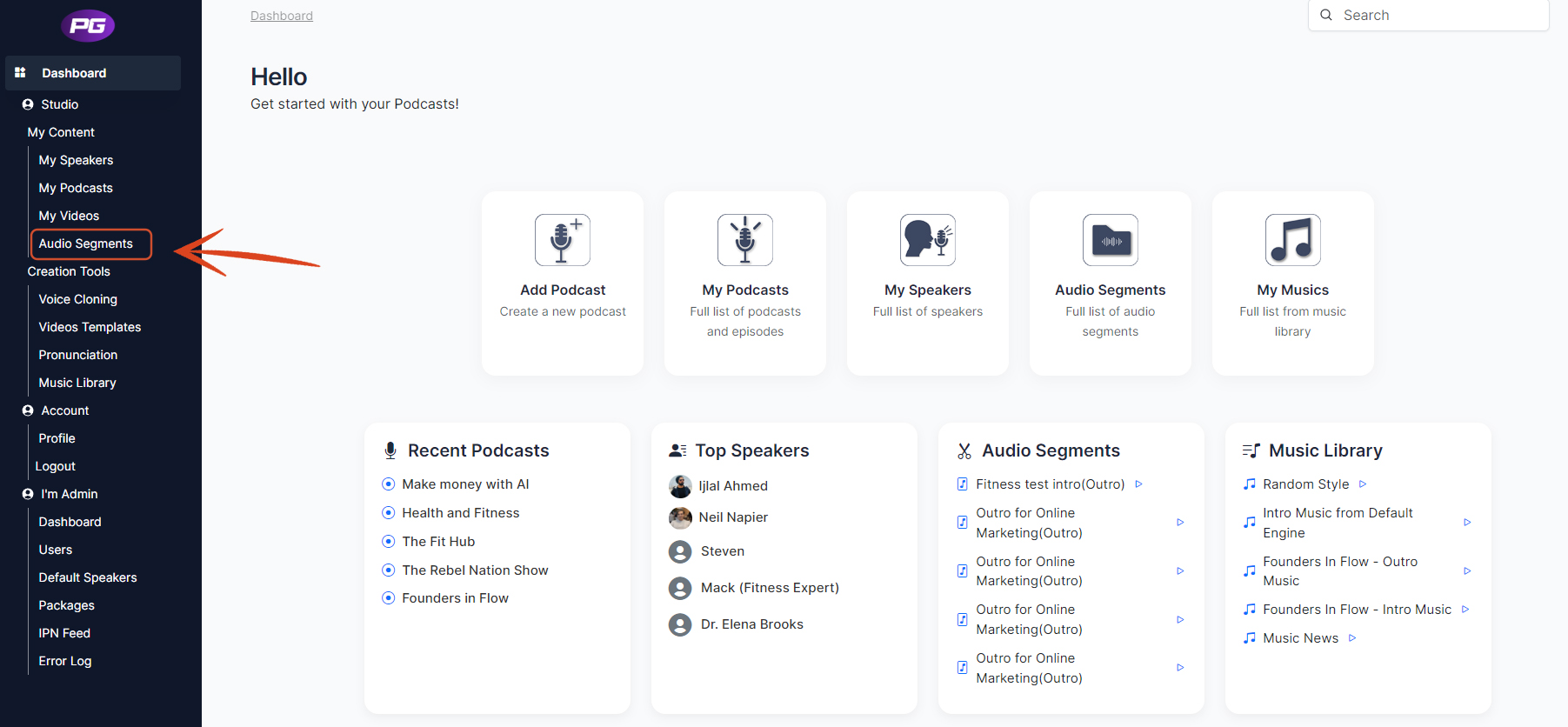
- Click on Add New.
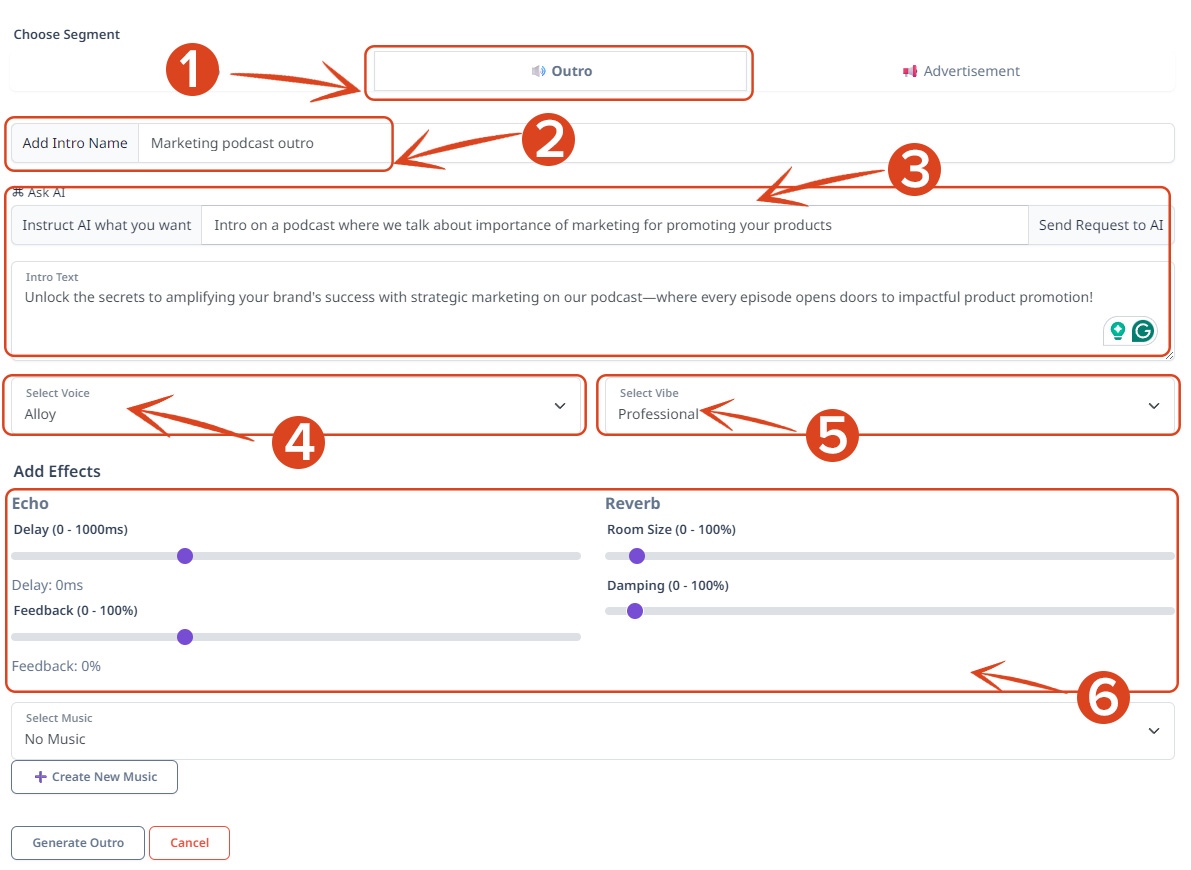
- Select Outro.
- Enter outro name.
- Add into text or you can ask AI to write an intro for you.
- Select the voice for your outro
- Select vibe for the outro
- Add effect (if you want). Make sure that if you are adding delay then also add feedback and if you are adding reverb then also add damping to balance it.
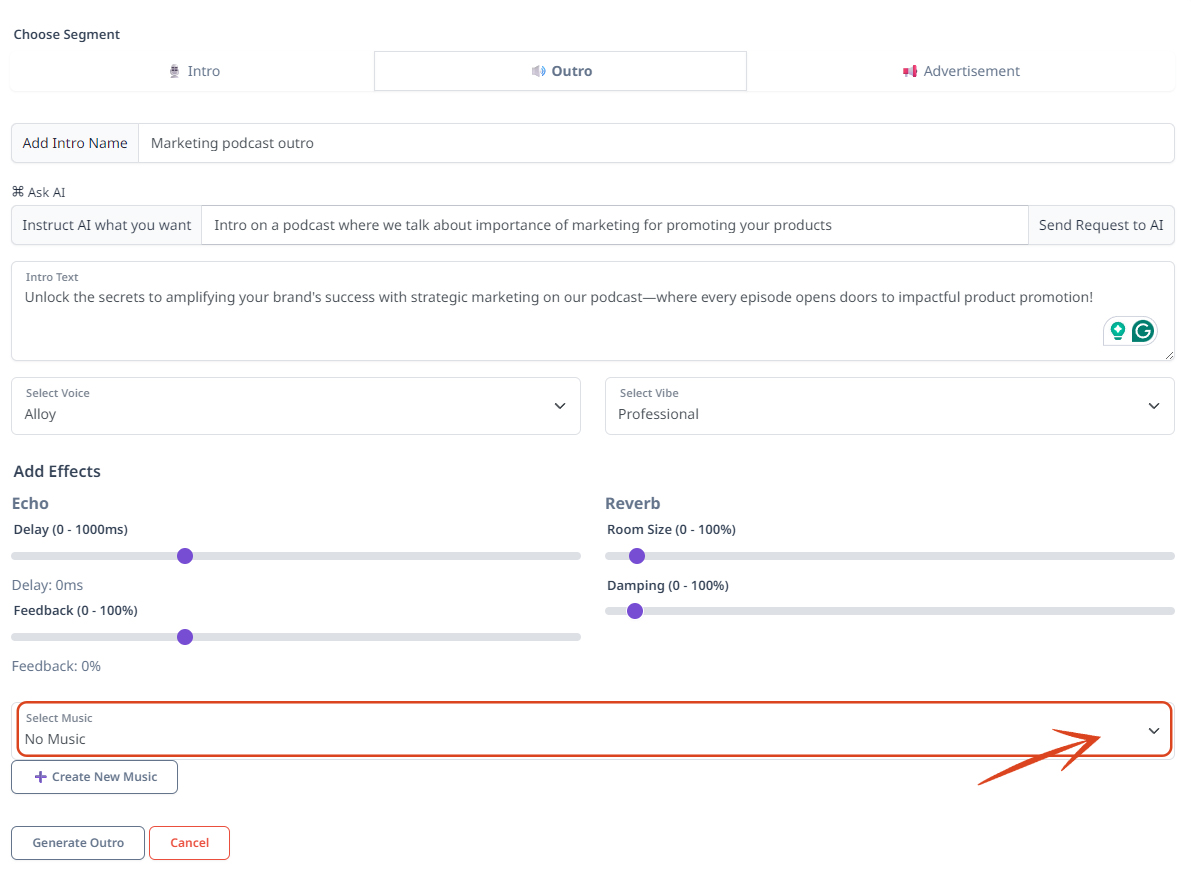
- You can also add music to your intro by clicking on a drop down under Select Music.
- Click on Generate Outro to generate your intro.
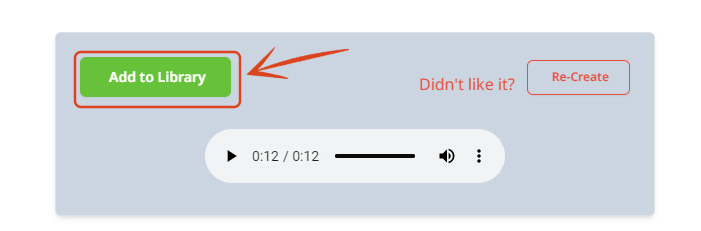
- Once your outro is generated, you can add it to the library.
- To add outro to your podcast head over to the My Podcast from the left navigation bar.
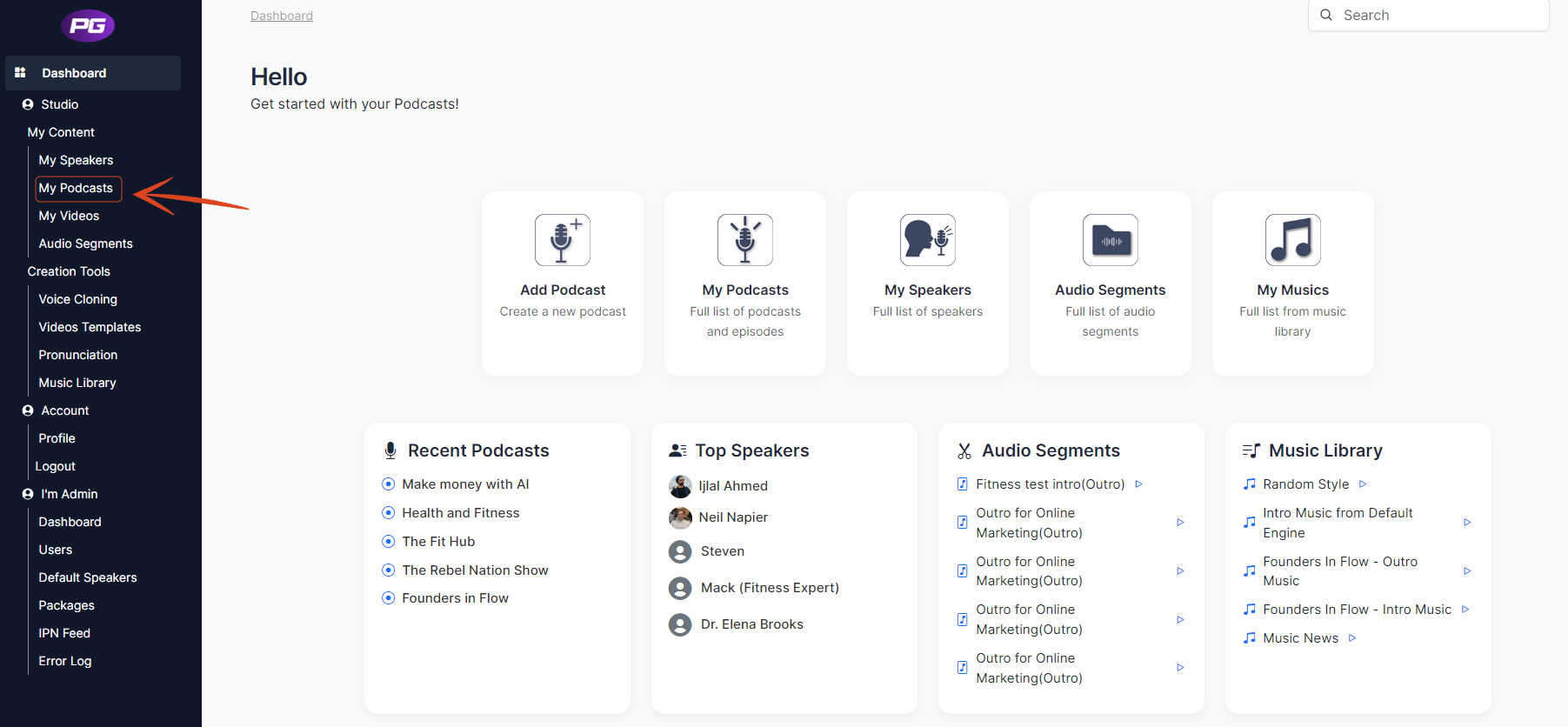
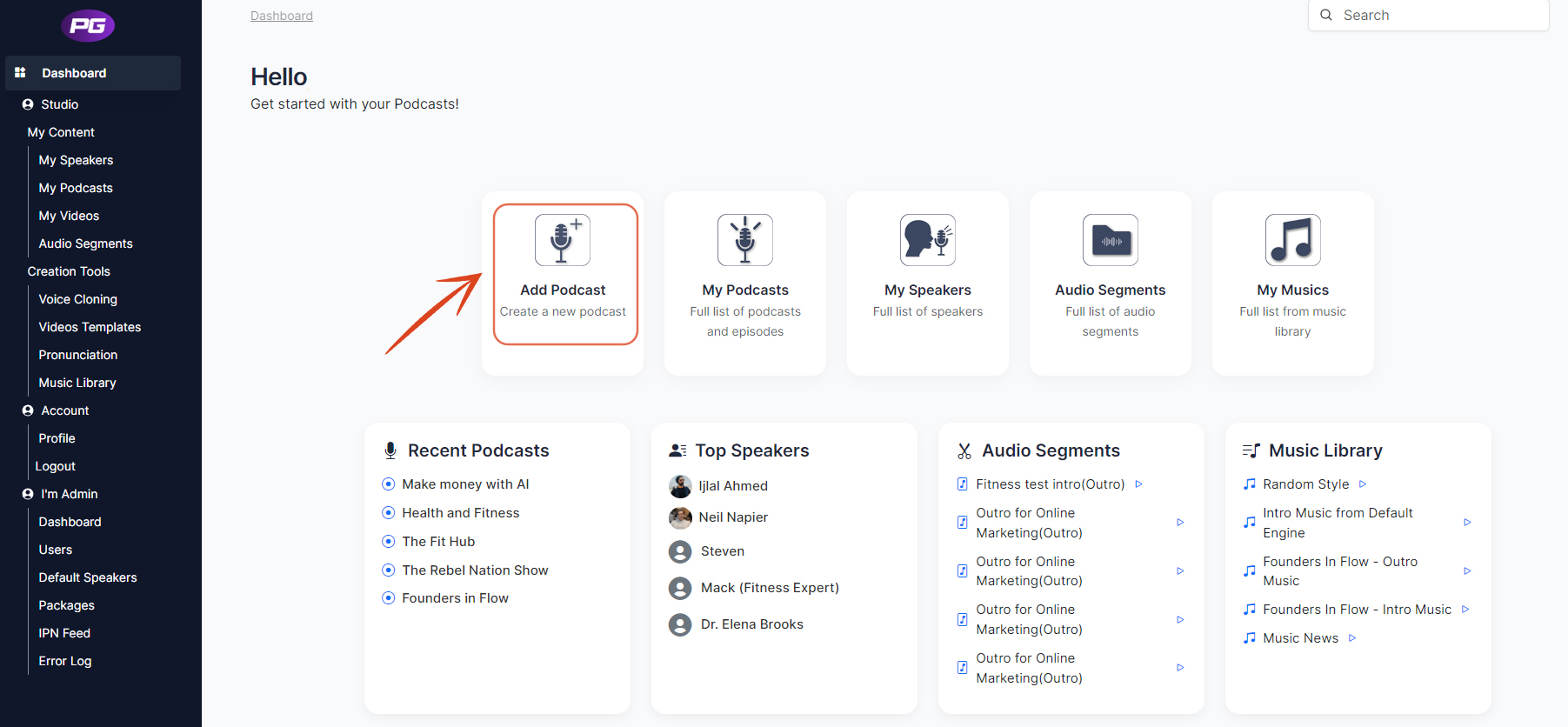
- Click on Add Podcast.
- Click on the arrow icon, the outro you have added to you library will show up. Select the outro you have added to your library.
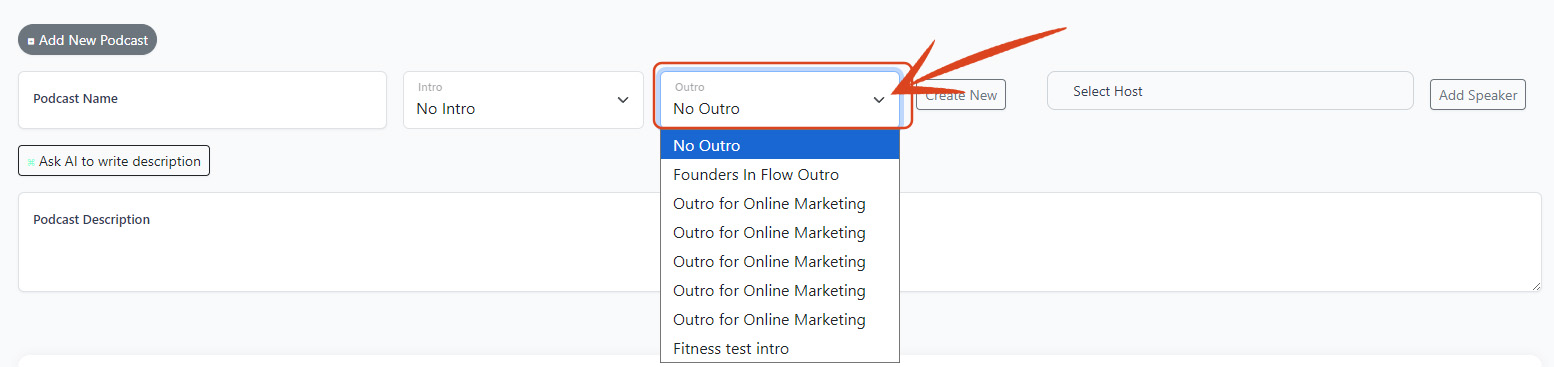
- Fill up all the details and click Submit, the outro will be added automatically to each episode of the podcast you create.
Was this article helpful?
That’s Great!
Thank you for your feedback
Sorry! We couldn't be helpful
Thank you for your feedback
Feedback sent
We appreciate your effort and will try to fix the article