What This Covers
How to create a new episode for your podcast.
✅ Step-by-Step Instructions
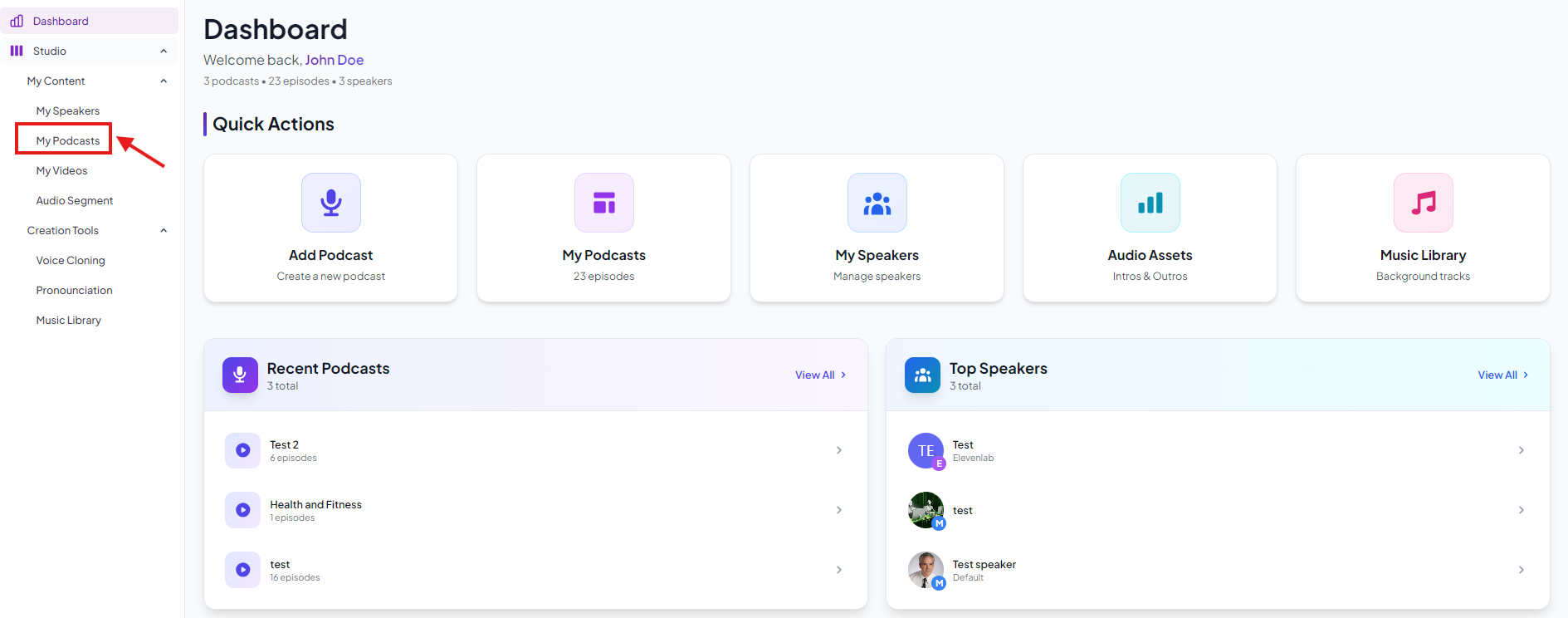
- Once you have created a podcast go to the My Podcasts page from the left navigation bar.
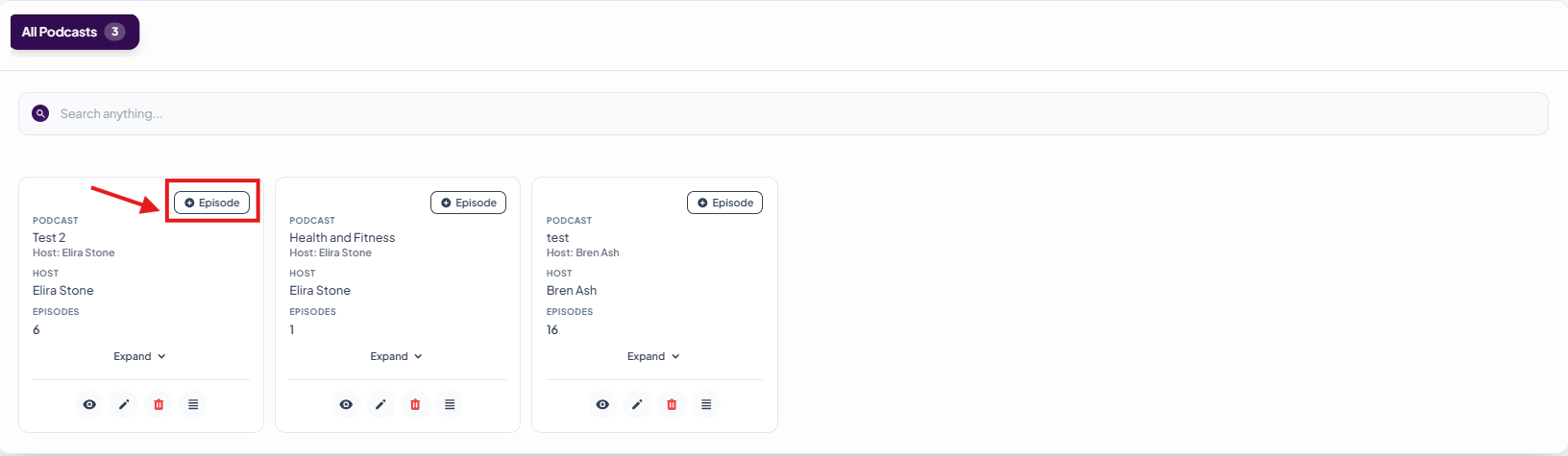
- Click on +Episode beside the podcast you want to create an episode for.
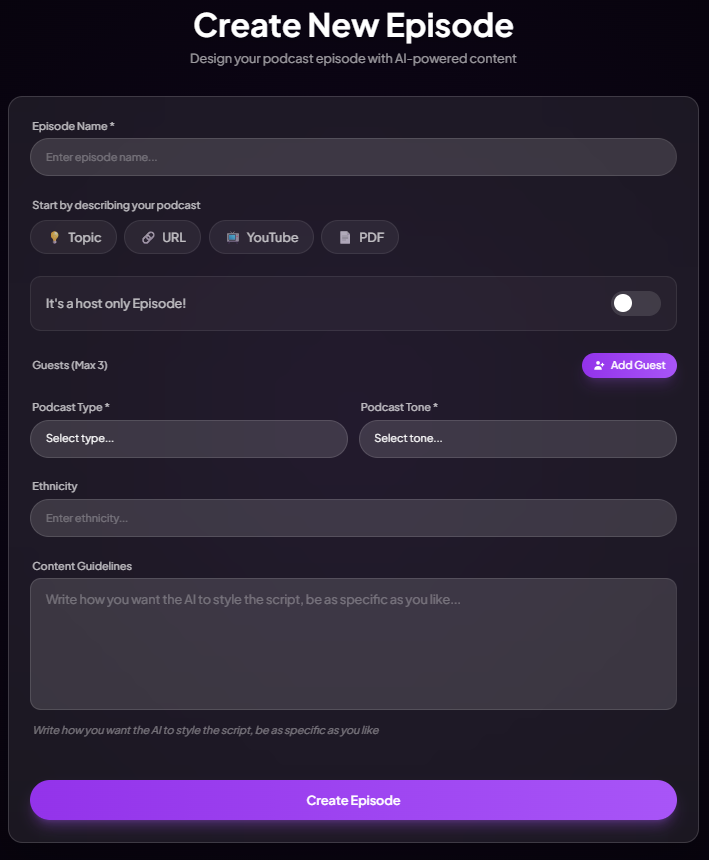
- Add episode name.
- Select a guest (you can add more than 1 guest).
- Select Topic, URL, YouTube or PDF for the inspiration of the podcast episode
- Select podcast rype
- Select tone and click on Create Episode.
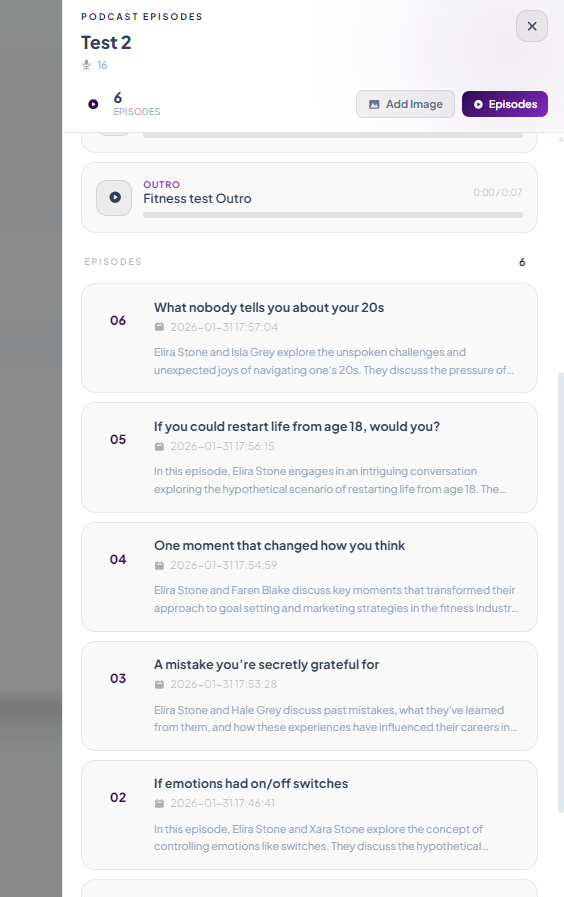
- Your episode is now generated. Click on Episodes button to view the episodes.
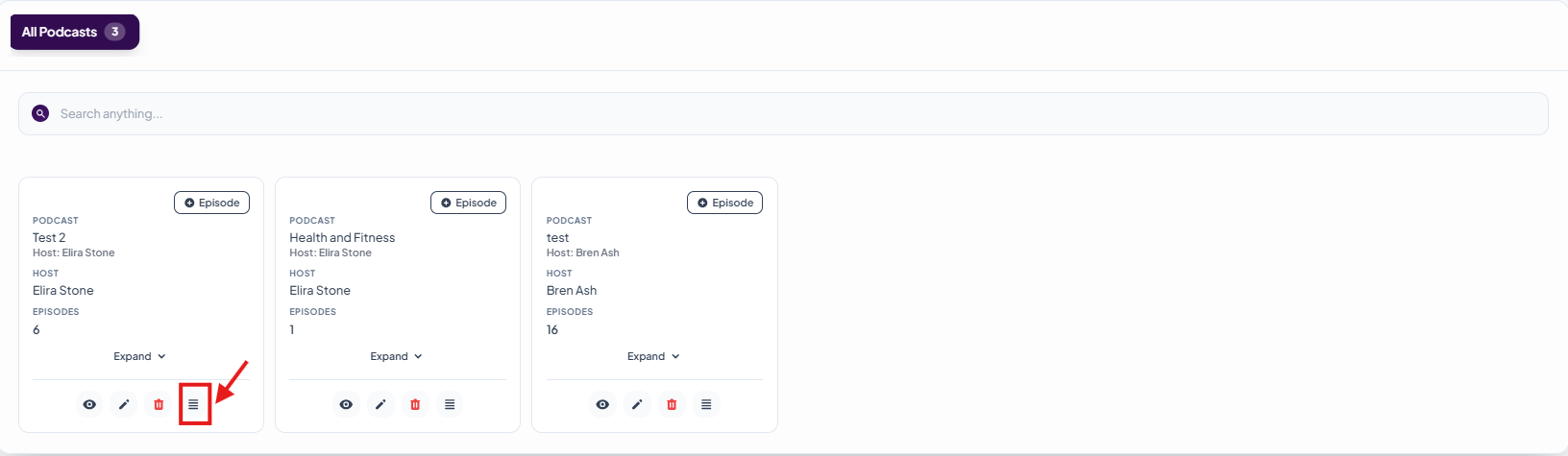
- List of episode will open, now click on the episode you have just created.
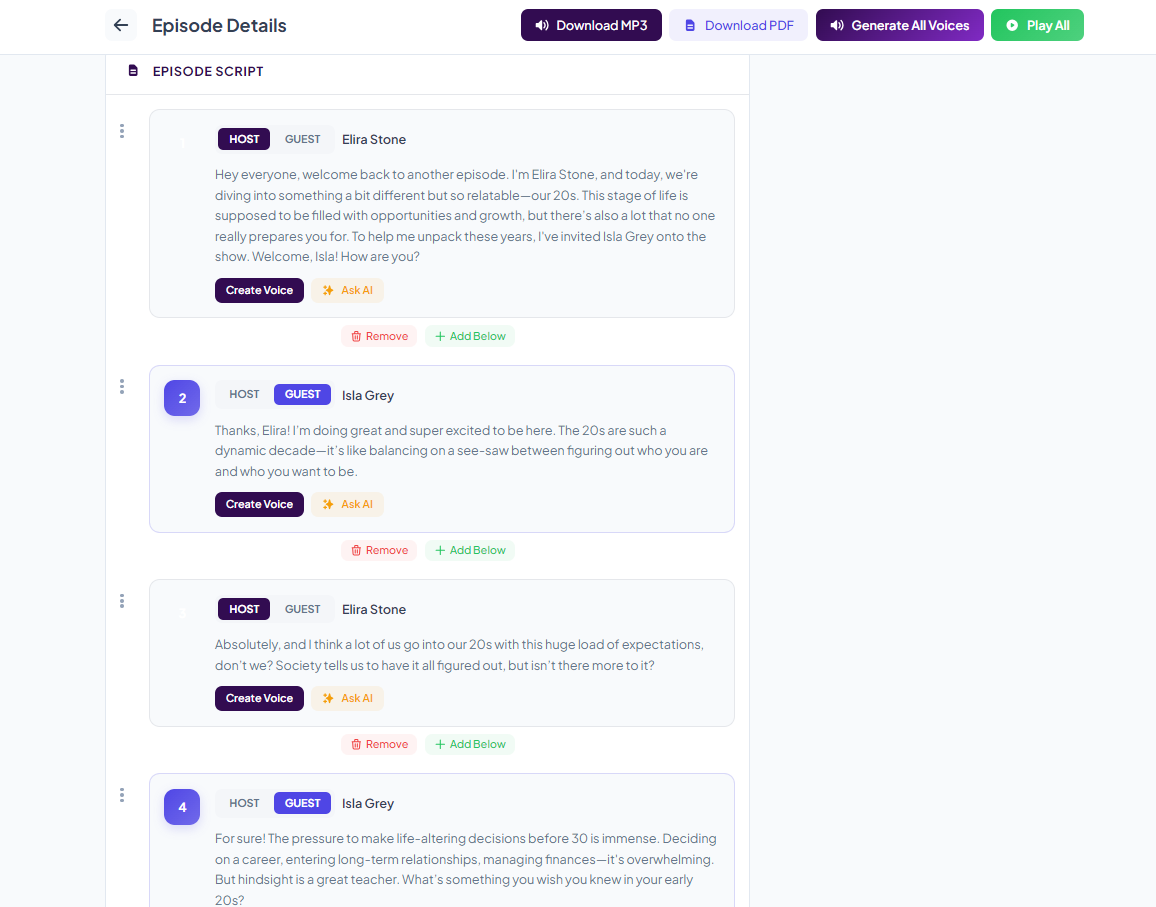
- All the generated dialogues will appear. You can make any changes to any dialogues by simply hoveing on the dailoug a click to eidt button will appear click on it to edit the dailouge.
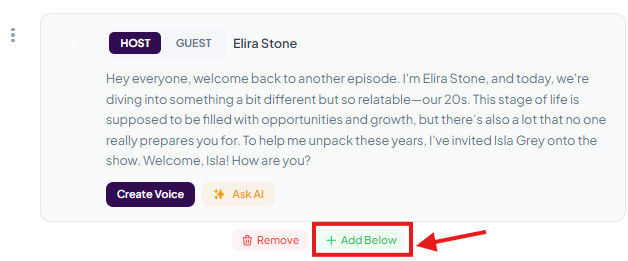
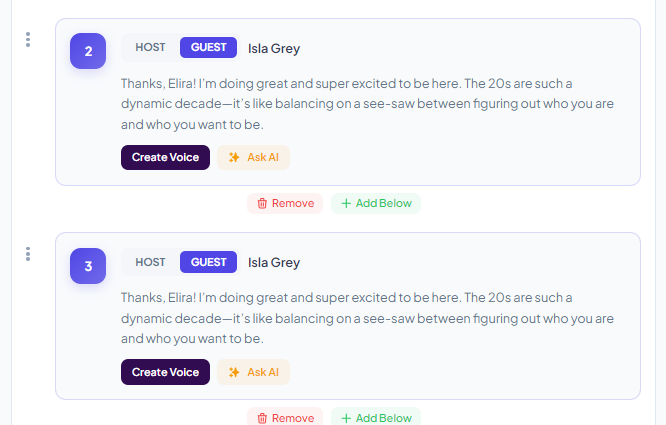
- You can also add a line or an advertisement by clicking on the +Add Below icon beneath the dialogue you want.
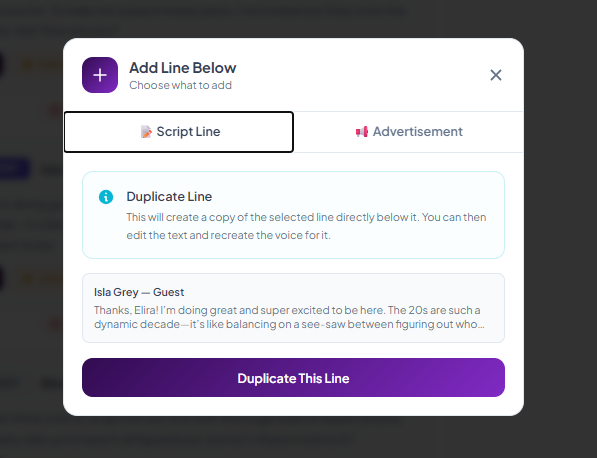
- A popup will appear. Click on Duplicate This Line.
- Now the dialogue is duplicated, you can edit the text of the duplicate dialogue.
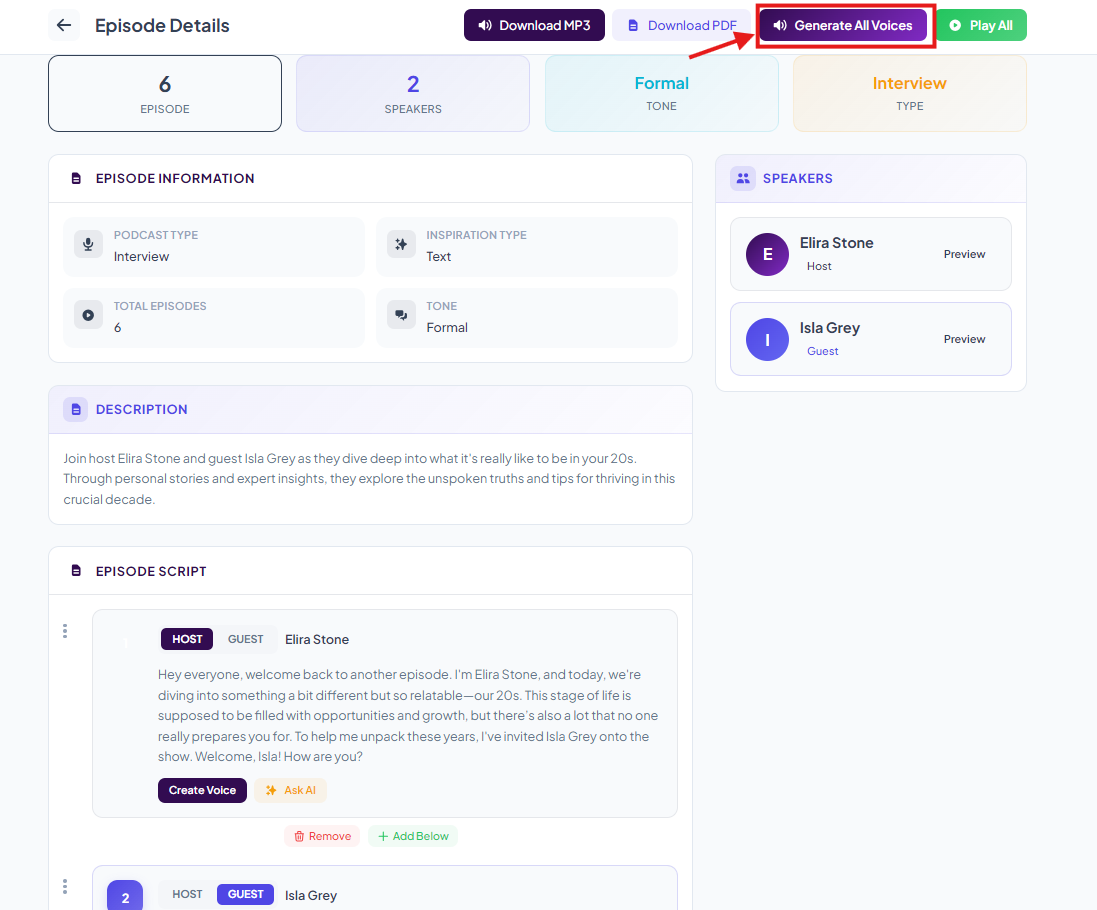
- Once you have are done with the changes (if any), you can now generate the voices by clicking on the Generate All Voices.
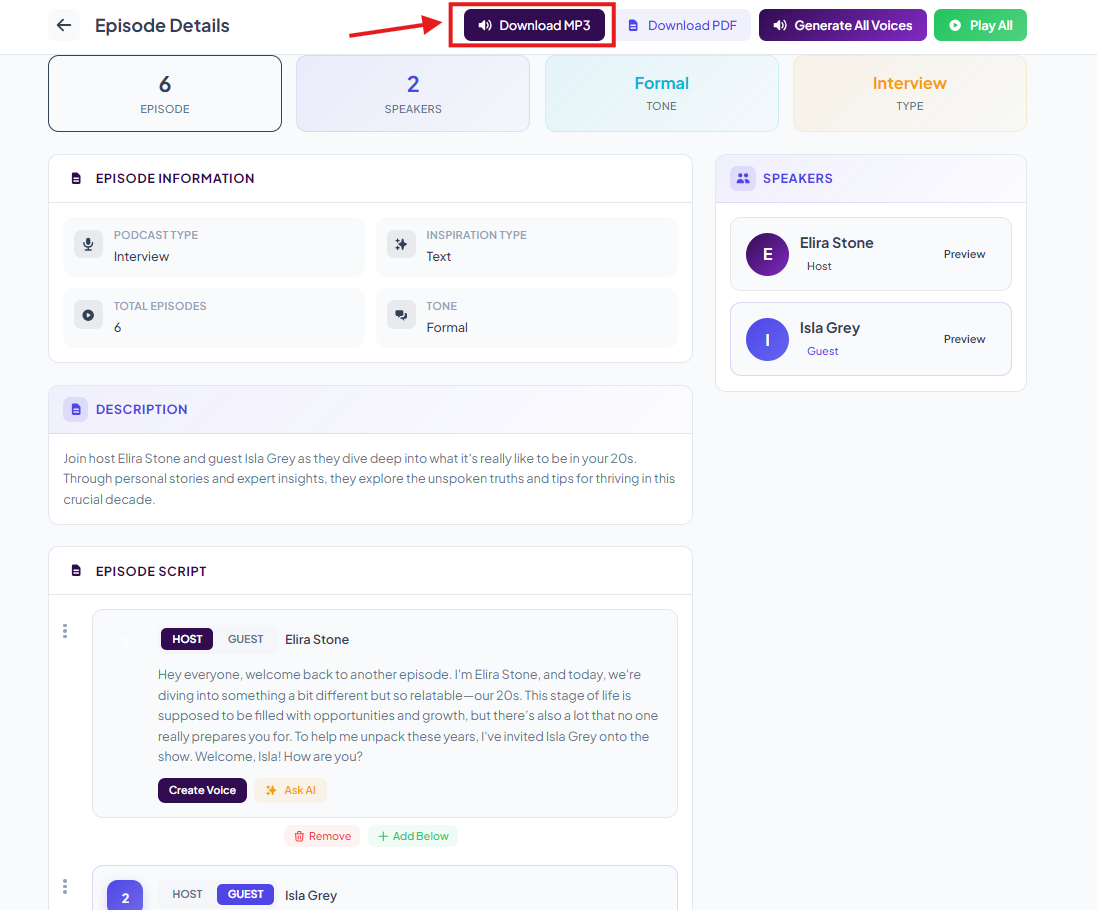
- Your audio podcast is now ready, you can download it by clicking on the download button.
Was this article helpful?
That’s Great!
Thank you for your feedback
Sorry! We couldn't be helpful
Thank you for your feedback
Feedback sent
We appreciate your effort and will try to fix the article